Choose a calculator
The hauling calculator totals occupied slots and trips to base. Enter your actual free slots and stack caps. Stack caps are a server setting separate from the gathering rate.
If your item list is already open in the hauling calculator, choose “Use as crafting stock” or “Estimate recycling for these items”.
For crafting, choose a target and then select “Scan stock from inventory”. For recycling, choose “Scan inventory” and check which items you are willing to spend.
Open a screenshot or choose the Rust window
On a phone, choose a photo or screenshot from the gallery. Try a PNG or JPEG up to 20 MB if the file cannot open.
On a computer, choose screen capture and select the Rust window when the browser prompts you. If the option is unavailable or the preview is black, open a screenshot file. The browser processes the image locally.
Frame one item grid
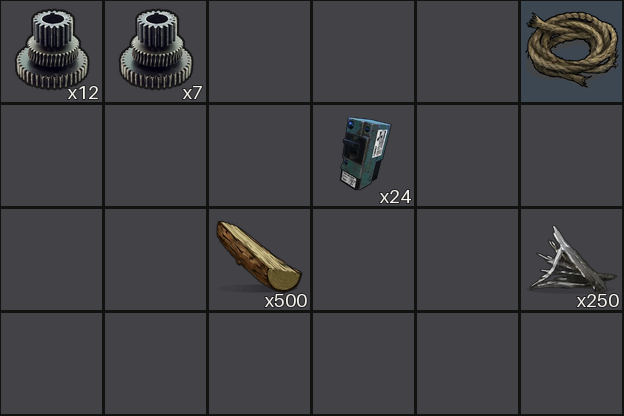
Choose “Try the example” to open a ready-made 6 × 4 grid. For your own screenshot, set the column and row counts inside the crop. Include empty slots and keep the hotbar, clothing, other containers, and tooltips outside the frame.
The scanner supports up to eight columns and eight rows. If quantities are too small to read or part of the box is hidden, split the box across crops at slot boundaries.
Review each stack
The practice file shows two gear stacks, with 12 and 7 gears. The plan should show 19 after you confirm. Expand “Unidentified slots” to pick an item manually or skip the row. Correct the amounts before applying.
The recycler scanner offers items in its recycling catalog. The example wood and metal fragments are useful for testing the hauling and crafting calculators.
Replace a stock count or add another box
“Replace stock” sets the total for each selected item type to the sum from the scan. “Add to existing stock” works for the next box. Use “Undo import” if you add the same screenshot twice.
Before you leave
Tick the checks you have completed. Their state stays in this browser.